
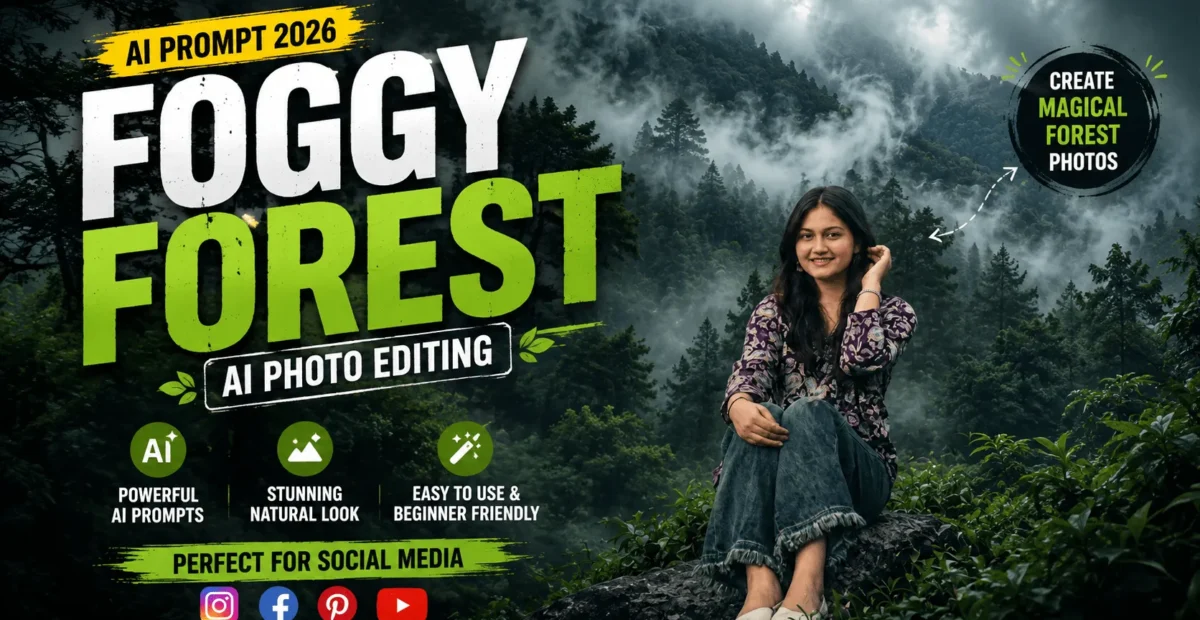
Foggy Forest AI Prompt 2026: Create a Cinematic Misty Masterpiece from Any Photo – The Prompt Baba
 By Sudip Jana
0 Comments
Want to turn an ordinary nature photo into a mysterious, cinematic forest scene? A foggy forest AI prompt can help transform a simple outdoor photograph into a misty woodland image with atmospheric lighting, rich green tones, and realistic details. You can use these prompts with compatible AI image editing tools to create a peaceful, dramatic, or movie-like forest atmosphere.
What Does a Foggy Forest AI Prompt Do?
A foggy forest AI prompt instructs an AI tool to enhance a nature photograph with realistic mist, deeper colors, soft lighting, and cinematic atmosphere. Depending on the original photo and the tool, the result may include:
- Dense fog and layered mist between trees.
- Deep emerald green, moss green, and dark teal color grading.
- Soft light rays filtering through the forest.
- Improved contrast, texture, and atmospheric depth.
- A professional, cinematic nature-photography look.
For the most natural results, start with a clear photograph containing trees, greenery, or a landscape with visible depth.
2 Foggy Forest AI Prompts to Copy and Use
Choose the prompt that matches your preferred style. The first creates a bright, misty woodland scene, while the second focuses on a darker cinematic color grade.
Prompt 1: Ultra-Realistic Misty Forest Transformation
Use this prompt when you want dense natural fog, lush greenery, soft light rays, and a detailed forest atmosphere.
Transform the uploaded nature photograph into a breathtaking, ultra-realistic foggy forest scene. Preserve the original composition and recognizable natural features wherever possible.

Add dense, soft white mist drifting naturally between the trees, creating multiple layers of atmospheric depth. Enhance the foliage with rich emerald green, moss green, deep forest green, and subtle earthy brown tones.

Introduce gentle volumetric light rays filtering through the canopy and diffusing through the fog. Maintain realistic tree bark, leaves, ground textures, natural shadows, and balanced highlights.

Create a peaceful yet mysterious early-morning woodland atmosphere with professional DSLR-style photography, realistic depth of field, natural contrast, refined color grading, and crisp details.

Avoid artificial-looking fog, excessive saturation, oversharpening, distorted trees, and unrealistic lighting. Keep the result photorealistic and visually balanced.

Style: Cinematic Nature Photography, Misty Woodland, Atmospheric Perspective, Soft Volumetric Lighting, Natural Color Grading, Photorealistic High Detail.
Prompt 2: Dark Moody Cinematic Forest Color Grade
Choose this version for a dramatic, darker forest mood with deep shadows, muted highlights, and a film-inspired finish. It emphasizes color and lighting rather than adding new objects.
You are a professional cinematic colorist. Regrade the uploaded forest photograph into a dark, atmospheric, film-like woodland image.

Preserve the original scene, tree shapes, landscape geometry, composition, and existing objects. Focus on adjusting color, light, contrast, and atmosphere rather than regenerating the entire scene.

Apply deep forest-green and subtle teal tones to the shadows while retaining visible detail in darker areas. Reduce excessive saturation and create restrained, natural colors. Keep highlights soft and controlled, with gentle light diffusion through the existing mist.

Add realistic layers of fog between distant trees to improve atmospheric perspective without hiding the important details of the scene. Use subtle film grain, balanced contrast, natural textures, and a refined cinematic finish.

Avoid crushed blacks, blown-out highlights, artificial green coloring, excessive haze, plastic-looking textures, and exaggerated HDR effects.

Final style: Moody Cinematic Forest, Dark Woodland Photography, Natural Fog, Teal-Tinted Shadows, Soft Highlights, Realistic Film Color Grading.

Return a photorealistic result that still resembles the original photograph.
How to Use a Foggy Forest AI Prompt
Follow these simple steps to transform your photo using an AI image tool that supports image uploads and editing.
- Choose a clear forest, garden, park, or outdoor landscape photograph.
- Open an AI image editing tool, such as ChatGPT or another compatible platform.
- Upload your original photograph.
- Copy one of the two prompts above and paste it into the conversation or editing field.
- Ask the tool to generate or edit the image according to your instructions.
- Review the result and refine the prompt if you want more fog, brighter lighting, or a darker mood.
Which Photos Work Best?
Photos with visible trees, layered greenery, distant backgrounds, and natural light generally provide a strong starting point. High-resolution images can also help preserve fine details such as leaves and tree bark.
Very blurry photographs or images with little visible vegetation may produce less convincing results. If you want to preserve a particular location, begin with a photograph that clearly shows its distinctive features.
Tips for Better Foggy Forest Results
Describe the Fog Intensity
Use phrases such as “light morning mist,” “dense atmospheric fog,” or “layered fog between distant trees” to control the overall appearance.
Keep Colors Natural
If the forest looks overly green or artificial, request restrained saturation, natural foliage colors, and balanced highlights.
Protect Important Details
When editing an existing photograph, ask the AI to preserve the original composition, recognizable trees, and other important scene elements. Image-editing tools may still alter details, so check the output carefully.
Adjust the Mood
For a peaceful look, request soft morning light and gentle mist. For a dramatic effect, ask for darker shadows, muted colors, and heavier fog while retaining realistic detail.
Common Problems and Solutions
| Problem | What to Change |
|---|---|
| Not enough fog | Request denser mist and more visible fog layers. |
| Colors look artificial | Reduce saturation and specify natural forest colors. |
| The scene is too dark | Ask for brighter midtones and more detail in shadows. |
| Trees look distorted | Emphasize preservation of the original scene and use a clearer source photo. |
| The image looks overprocessed | Request subtle color grading, realistic textures, and restrained contrast. |
Where Can You Use Foggy Forest Images?
Your finished images may work well as desktop or mobile wallpapers, social media posts, nature-themed blog graphics, digital artwork, travel content, or video thumbnails. Before using an image commercially, check the applicable AI platform’s usage terms and any rights associated with your original photograph.
Frequently Asked Questions
Can I use these prompts with any photo?
They are best suited to forest photographs and outdoor nature scenes. Other images may produce different results because the prompts are designed around woodland environments.
Can I use these prompts for free?
You can copy and try the prompts for free. However, image uploads, editing features, and the number of generations available depend on the AI platform and your account plan.
Can I create a foggy forest image without uploading a photo?
Yes, if your chosen tool supports text-to-image generation. For that purpose, change the opening instruction from editing an uploaded photograph to creating an entirely new forest scene.
Why does my result look different from the original?
Some AI tools regenerate parts of an image instead of making precise adjustments. Add clear instructions to preserve the composition and important details, or use an editing tool with stronger image-preservation controls.
Conclusion
A foggy forest AI prompt is a simple way to explore atmospheric nature photography and cinematic visual styles. The first prompt focuses on lush greenery, realistic mist, and soft light, while the second creates a darker, film-inspired mood.
Start with a clear nature photograph, try either prompt, and make small adjustments until the lighting, fog, and colors match your vision. For the most convincing result, prioritize realistic textures and natural-looking atmosphere over excessive effects.
“`