
Choose the Main Story Inside the Silhouette
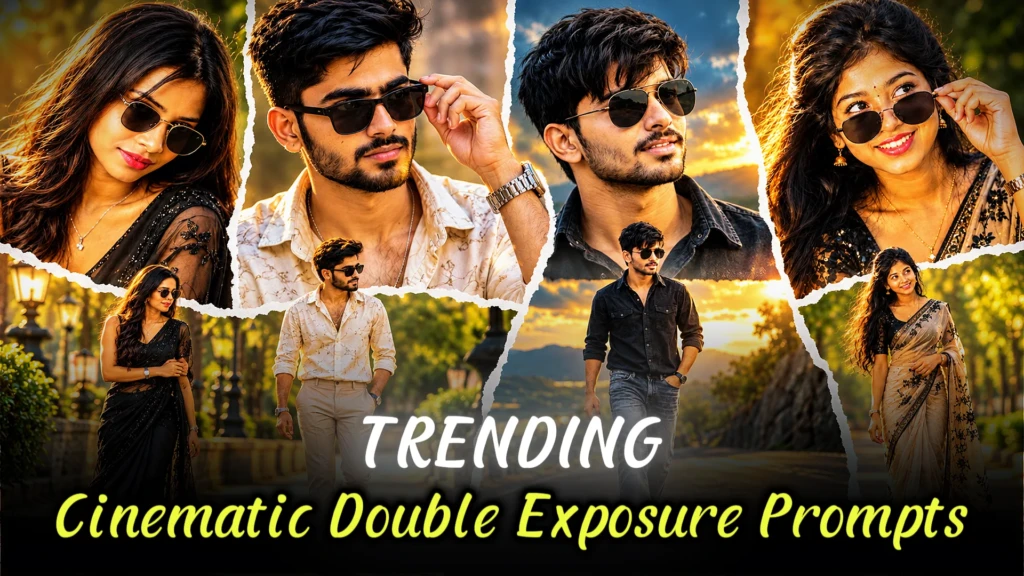
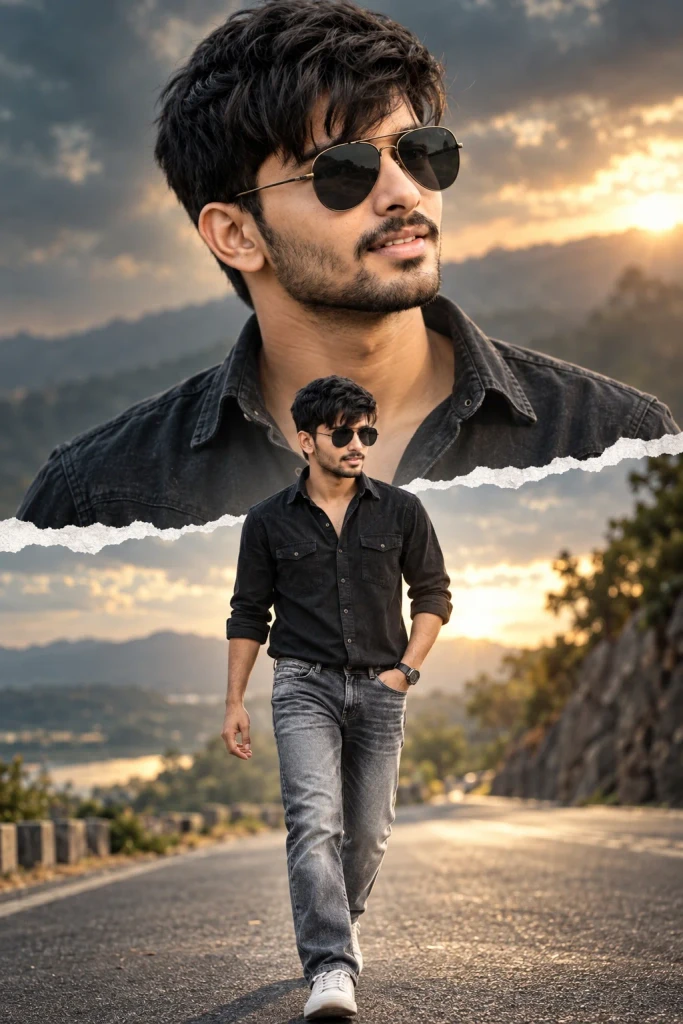
Double exposure can turn an ordinary portrait into an image with a second layer of meaning. For ChatGPT photo editing, describe the portrait shape and the inner scene separately. A forest can suggest reflection or growth, an ocean can create a calm mood, and city architecture can feel modern. Pick one visual idea so the finished composition has a clear message.
The subject’s profile should remain easy to recognise. A side-facing portrait gives the editor a defined outline to work with, while a front-facing image may create a more complex blend. Ask for the inner scene to follow the silhouette rather than spill randomly across the background. This makes the layered effect feel intentional and helps the viewer understand both images.
Try this scene with your own reference image:
Use a City or Landscape That Means Something
Contrast and transparency need balance. If the inner scene is too bright, the face outline can disappear. If it is too dark, the second image may be difficult to see. Request smooth transitions and a limited colour palette. Preserve the person’s facial shape and hairstyle, even when the effect is artistic. A little texture can unify the layers without making the result noisy.
Keep the Two Layers Visually Balanced
Try this scene with your own reference image:
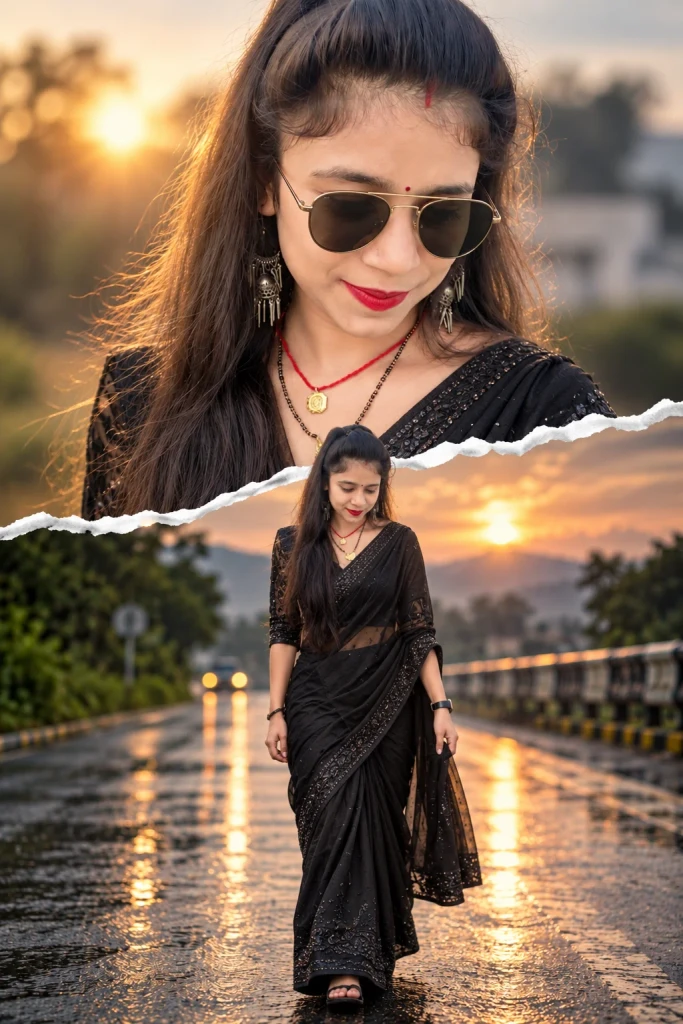
View the final image at both full size and as a small thumbnail. The concept should still be understandable when reduced. If the portrait outline is unclear, simplify the inner scene or increase separation between the layers. A successful double exposure is not just a special effect; it combines two visual elements into one coherent composition.
Try this scene with your own reference image:
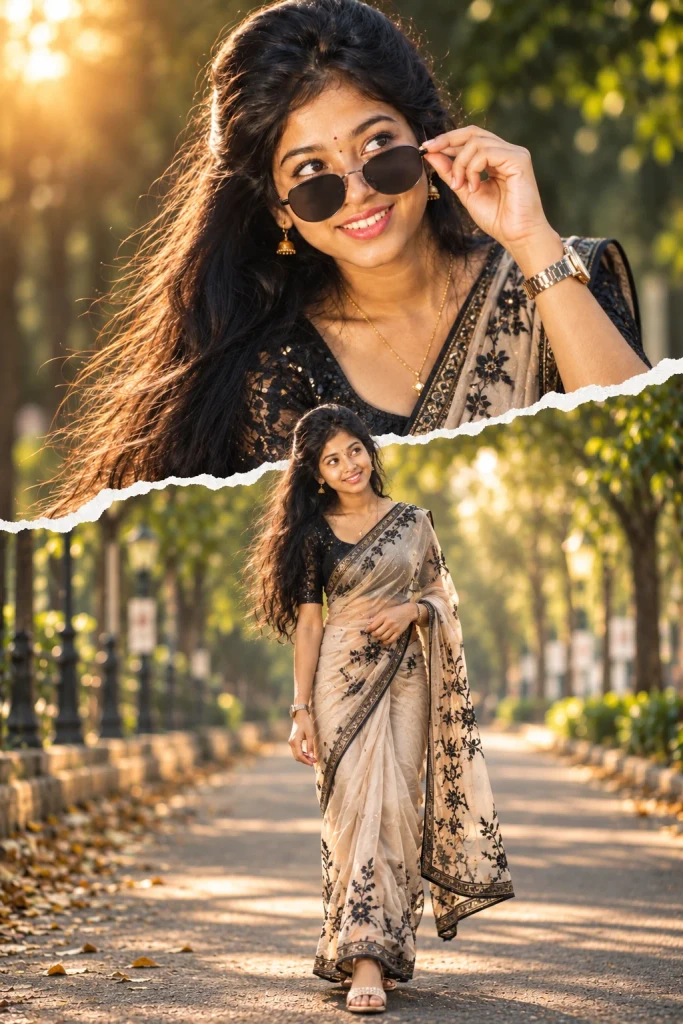
Double exposure works best when the inner image has a clear subject of its own. A forest path, coastline or group of city buildings is easier to recognise than a collection of unrelated objects. Keep the contrast gentle so the outer portrait remains visible. You can experiment with monochrome or muted colours, but maintain enough tonal difference between the layers.
Make the Artistic Result Easy to Read
How to Use These Prompts
- Open Google Gemini or ChatGPT.
- Upload a clear, well-lit photo.
- Copy the prompt above and paste it into the chat.
- Send it and wait a few seconds.
- Run it 2 to 3 times for the sharpest result.
Prompt Tips
- Use a clear photo with soft, natural light.
- Edit outfit or accessory details to match your style.
- If the face looks off, add "preserve facial identity 100%" at the start of the prompt.