
Select a Saree Colour and Fabric
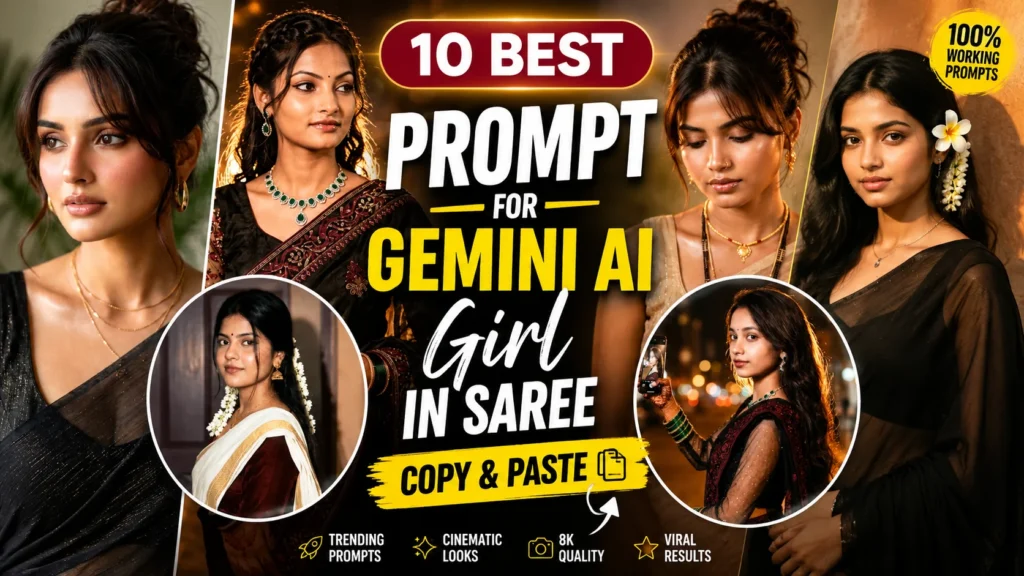
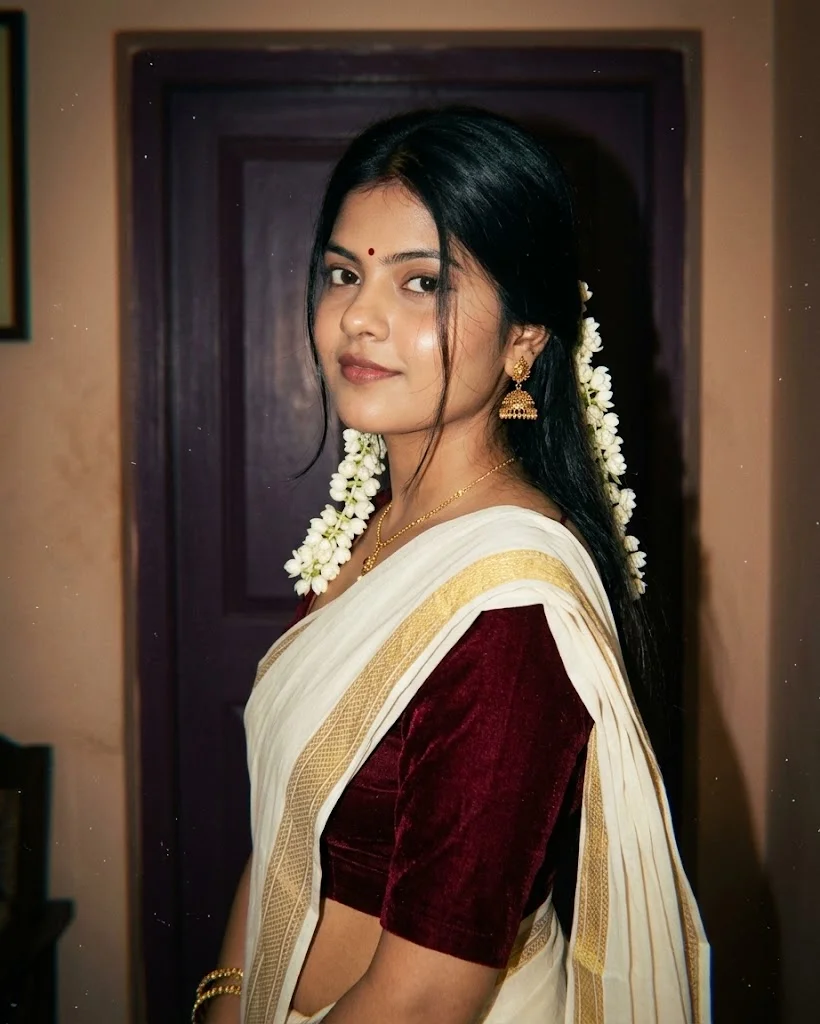
A saree portrait depends on the fabric, drape and way the person carries the outfit. Before editing, choose the look you want: a classic silk saree, a soft pastel style or a contemporary evening outfit. Describe the fabric clearly because silk, chiffon and cotton behave differently in photographs. The pleats and pallu should look naturally arranged rather than floating or merging into the body.
Try this scene with your own reference image:
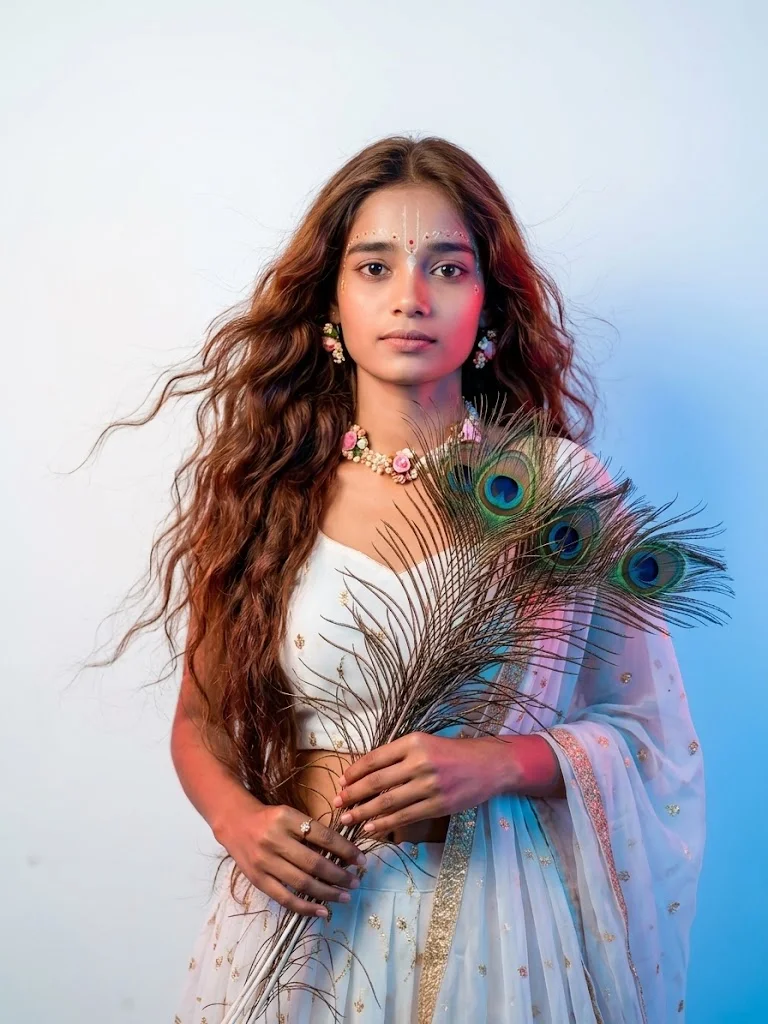
Background choice can change the whole mood. A heritage interior suits a traditional red saree, a garden can complement a pastel look, and a softly lit evening venue works with black or deep jewel tones. Keep the background simple enough for the saree to remain visible. Natural light is useful for showing fabric texture and maintaining a realistic skin tone.
Create a Setting That Complements the Drape
Jewellery should complement the outfit rather than overwhelm it. Gold earrings, a delicate necklace or bangles can add detail, but too many accessories may look artificial. Ask the editor to keep the face and hairstyle consistent with the reference image. If the original photo has a particular hair parting or expression, mention that it should remain unchanged.
Try this scene with your own reference image:
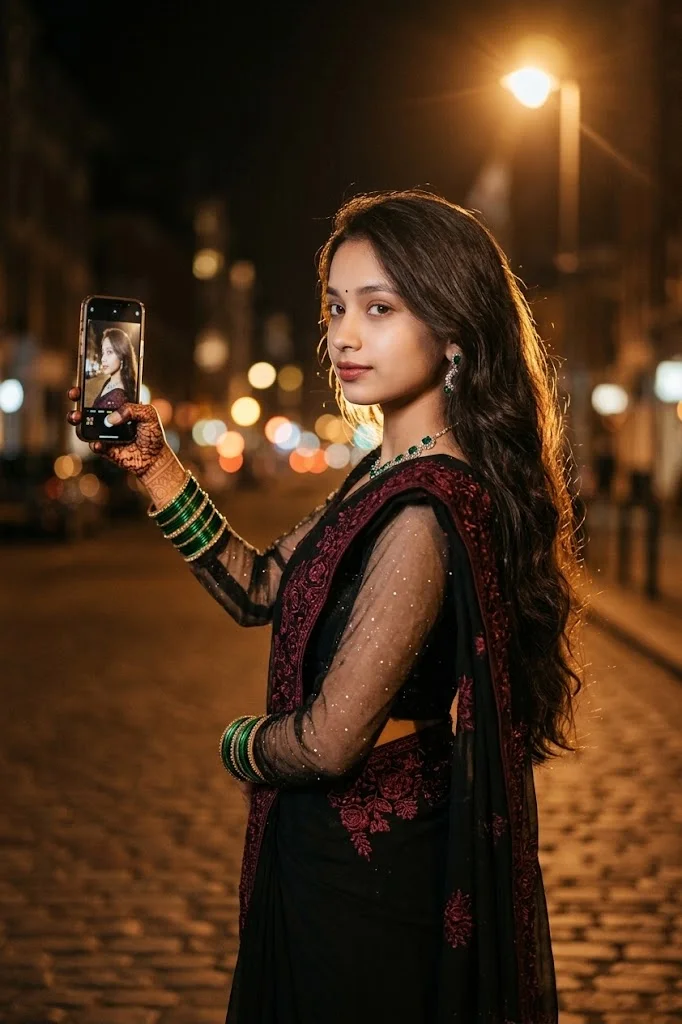
Use Jewellery as a Finishing Detail
Check the pallu edge, pleats, blouse sleeves and hands after generation. These areas can become distorted when the pose changes. A realistic saree portrait should show how the fabric falls and how the person stands. Choose the result with the most natural drape and recognisable face, then make a separate crop if you need a closer social-media portrait.
The saree’s pallu and pleats are central to the overall look, so check how the fabric falls around the shoulder and waist. Mention whether you want a traditional drape or a more contemporary styling. Keep the blouse design consistent with the saree and avoid adding random patterns. These details help the finished portrait look like a carefully styled fashion photograph.
Keep the Portrait Graceful and Realistic
Try this scene with your own reference image: Keep the styling graceful.
How to Use These Prompts
- Open Google Gemini or ChatGPT.
- Upload a clear, well-lit photo.
- Copy the prompt above and paste it into the chat.
- Send it and wait a few seconds.
- Run it 2 to 3 times for the sharpest result.
Prompt Tips
- Use a clear photo with soft, natural light.
- Edit outfit or accessory details to match your style.
- If the face looks off, add "preserve facial identity 100%" at the start of the prompt.